Before calling your ISP or paying for an upgrade, there's a good chance your internet can be made significantly faster — for free. Many of the most common internet speed problems come down to router placement, device settings, or network configuration, not your plan itself.
Here are 15 proven, actionable methods to improve your internet speed — starting with the easiest.
📊 Measure First — Then Fix
Run a speed test before and after trying these tips to see exactly how much each improvement helps.
Run Free Speed Test →Start Here — The Quick Wins
Restart Your Router and Modem
This is the oldest trick in the book — and it works. Routers accumulate memory leaks and connection errors over time. A restart clears all of this. Unplug both your router and modem for 30 seconds, then plug the modem in first, wait 60 seconds, then plug in the router. Run a speed test before and after to see the difference.
Move Your Router to a Central Location
WiFi signal radiates outward in all directions. If your router is in a corner or a cupboard, half of that signal is being wasted going through walls or into empty space. Place your router in the most central room in your home, elevated on a shelf or table, away from walls. This single change can dramatically improve coverage in every room.
Switch from 2.4 GHz to 5 GHz WiFi
Your router broadcasts two frequency bands. The 2.4 GHz band has a longer range but is crowded with interference from neighbouring WiFi networks, microwaves, and Bluetooth devices. The 5 GHz band is faster and less congested — but only works within about 10–15 metres of the router. If you’re close to your router, always use 5 GHz. Look for your network name with "5G" or "_5GHz" in your WiFi list.
Close Background Apps and Pause Cloud Syncing
Dropbox, Google Drive, iCloud, Windows Update, and automatic backups all consume bandwidth silently in the background. Open your Task Manager (Windows) or Activity Monitor (Mac), go to the Network tab, and see what's actually using your connection. Pause or schedule these tasks to run overnight instead.
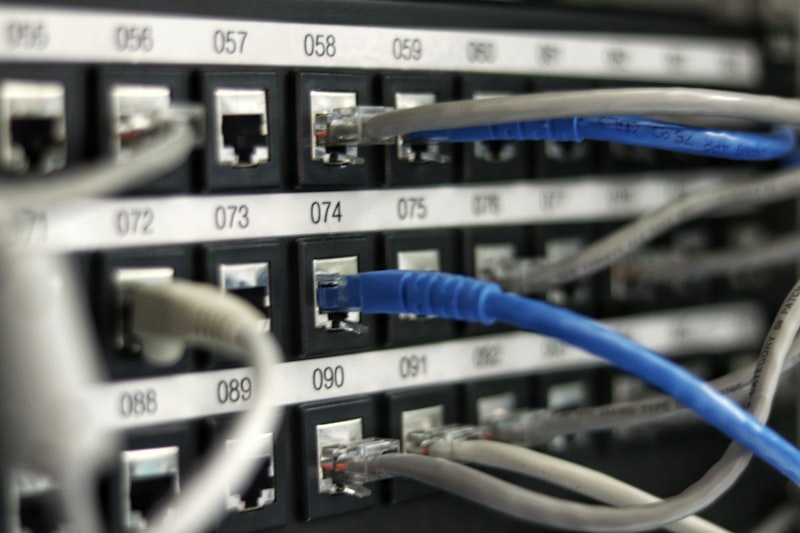
Use an Ethernet Cable Instead of WiFi
A wired connection eliminates WiFi interference entirely and typically gives you 20–50% faster speeds with significantly better latency and jitter. For desktop computers, gaming consoles, smart TVs, and streaming boxes — always plug in with Ethernet when possible. Even a basic Cat5e cable (under $10) makes a noticeable difference.
Intermediate Fixes
Change Your DNS Server
Your DNS server translates web addresses into IP addresses every time you visit a site. If your ISP's DNS is slow, every page load starts with extra delay. Switch to Cloudflare (1.1.1.1) or Google (8.8.8.8) DNS — both are free and significantly faster than most ISP defaults. You can set this in your router's admin panel to apply it to every device on your network instantly.
Update Your Router's Firmware
Router manufacturers release firmware updates that improve performance, security, and stability. Most people never update their router firmware — meaning they're running software that's potentially years out of date. Log into your router admin panel (usually 192.168.1.1 or 192.168.0.1), find the firmware update section, and install the latest version.
Enable QoS (Quality of Service)
Most modern routers have a QoS setting that lets you prioritise certain types of traffic. Enable it and prioritise your most important activities — video calls, gaming, or streaming — so they always get bandwidth first, even when other devices are active on the network. This won't increase your total speed, but it dramatically improves the experience for your highest-priority tasks.
Change Your WiFi Channel
WiFi routers transmit on specific channels. If your neighbours' routers are all using the same channel as yours, they create interference that slows your connection. Use a free app like WiFi Analyzer (Android) or Wireless Diagnostics (Mac) to see which channels are least congested in your area, then change your router's channel in the admin settings.
Limit Connected Devices
Every device connected to your WiFi — even if idle — uses some bandwidth and router processing power. Log into your router and remove any devices you don't recognise or no longer use. Smart home devices, old tablets, and forgotten guest devices all add up. Fewer active connections means more resources for the devices that matter.
Run a Malware Scan
Malware silently uses your internet connection to send data, participate in botnets, or mine cryptocurrency. This can consume significant bandwidth and slow your connection without any visible signs. Use Malwarebytes (free version) to run a full scan. Remove anything it finds and retest your speed.
Advanced Improvements
Upgrade to a WiFi 6 or WiFi 6E Router
WiFi 6 (802.11ax) and WiFi 6E offer significantly better performance in crowded environments, improved multi-device handling, and lower latency compared to older WiFi 5 routers. If your router is more than 4–5 years old, upgrading to a WiFi 6 router can make a substantial difference — particularly in households with many connected devices.
Set Up a WiFi Mesh Network
If you have dead zones in your home where WiFi doesn't reach well, a mesh WiFi system (like Google Nest WiFi Pro, Eero Pro 6E, or TP-Link Deco) places multiple access points throughout your home that work as one seamless network. This eliminates dead zones and ensures strong signal in every room, without the degradation that comes from traditional WiFi extenders.
Use a VPN to Bypass ISP Throttling
If your ISP is throttling specific types of traffic (especially streaming or P2P), a VPN can encrypt your connection and hide what you're doing — stopping the throttle. This won't help if your overall plan speed is the limit, but if you notice speed drops specifically when streaming or downloading, a VPN is worth testing. Try a free trial of a reputable VPN like Mullvad, ProtonVPN, or ExpressVPN.
Switch to Fibre Internet
If all else fails and your current connection simply can't deliver the speed you need, switching from cable or DSL to fibre is the most impactful upgrade possible. Fibre offers symmetrical upload and download speeds, lower latency, and far greater reliability. Check if fibre is available in your area — providers like BT, Virgin Media, and many local ISPs are rapidly expanding fibre coverage in 2026.
Your Speed Improvement Checklist
✅ Quick Reference Checklist
After trying these methods, run another speed test to measure your improvement. Share the results with your ISP as evidence if you're not getting the speeds you're paying for — this can help you negotiate a plan change or get a technician sent to your home.
⚡ Test Before and After
Measure your speed now, apply these fixes, and test again to see your exact improvement.
Run Speed Test Now →Frequently Asked Questions
- What is the first fix to try?
- Restart the modem and router, then retest. It clears stuck connections and often restores lost speed.
- Will a new router always help?
- If your wired speed is already at plan rate, upgrade WiFi gear. If wired is slow, call your ISP first.
- Does Ethernet improve speed?
- It often improves consistency and latency even when peak Mbps looks similar on good WiFi.
- How do I measure improvement?
- Test before and after each change at testspeed.space so you know which fix actually helped.